Overview
A terminal report is the full academic assessment of a student, covering all information the school gathers for the end-of-term assessment. It is available at any time but is best compiled at the end of each term or semester.
Accessing reports
Go to Reports → Report & Merit Sheet, select a term or semester under the appropriate school year, then generate the report for the class.
Reports can be printed together or emailed by the school to guardians, parents, or any chosen recipient. Schools can also schedule report submissions and send them when needed.
Report sections
Each section can be dynamically adjusted in Report Settings to show what matters most to the school on the report page.
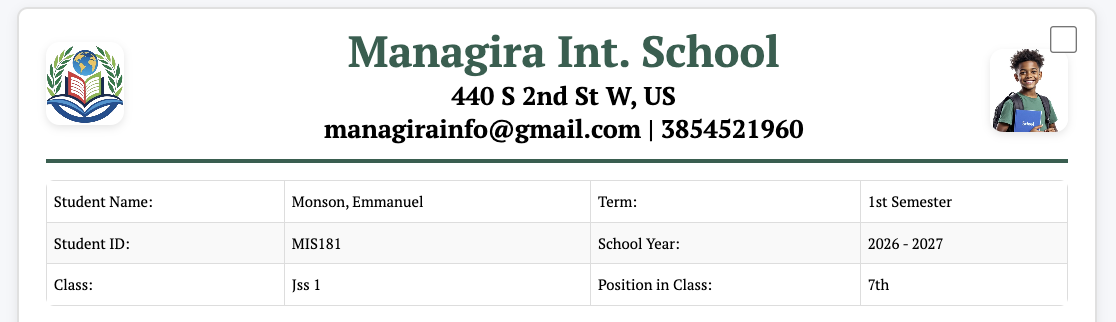
1. Student information
Displays the student's name, ID number, term and school year, class, and class position. This identifies the student and places their results in the right academic context.
2. Subjects and assessment scores
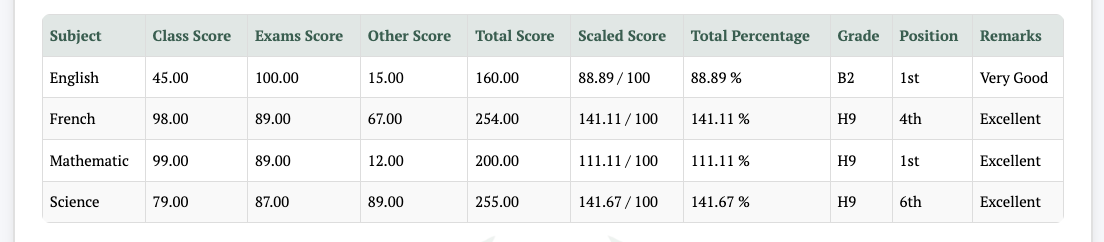
Shows each subject with scores, grades, total, percentage, position, scaled score, and remarks. In Report Settings, you can choose which assessments feed into each column and what is displayed or calculated.
3. Attendance and term dates
- Overall Percentage — the student's overall academic percentage for the term.
- Attendance — pulled from saved class attendance for that term and school year, or entered manually.
- Vacation Date — the date the term ends, based on the term settings under the school year and term settings page.
- School Reopens — configured manually for the class or school in Report Settings.

4. Promotion status
Shows whether the student is promoted or repeated. This is calculated automatically from the cutoff point set in Report Settings for that class, and can also be adjusted manually.
5. Academic remarks
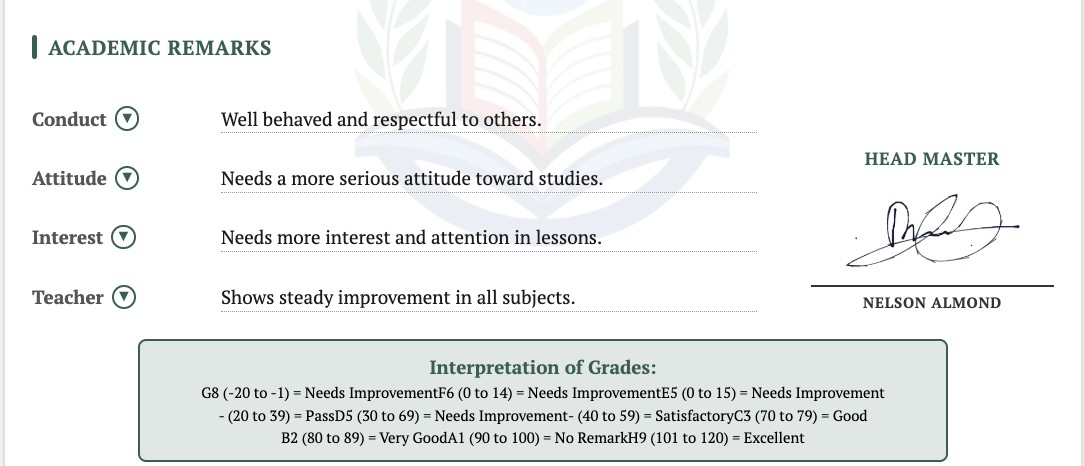
Covers conduct, attitude, interest, and teacher remarks. This gives parents a fuller picture of the student beyond scores.
6. Signature and grade interpretation
Displays the authorized signature and an interpretation of the grading system, so readers understand what each grade means.
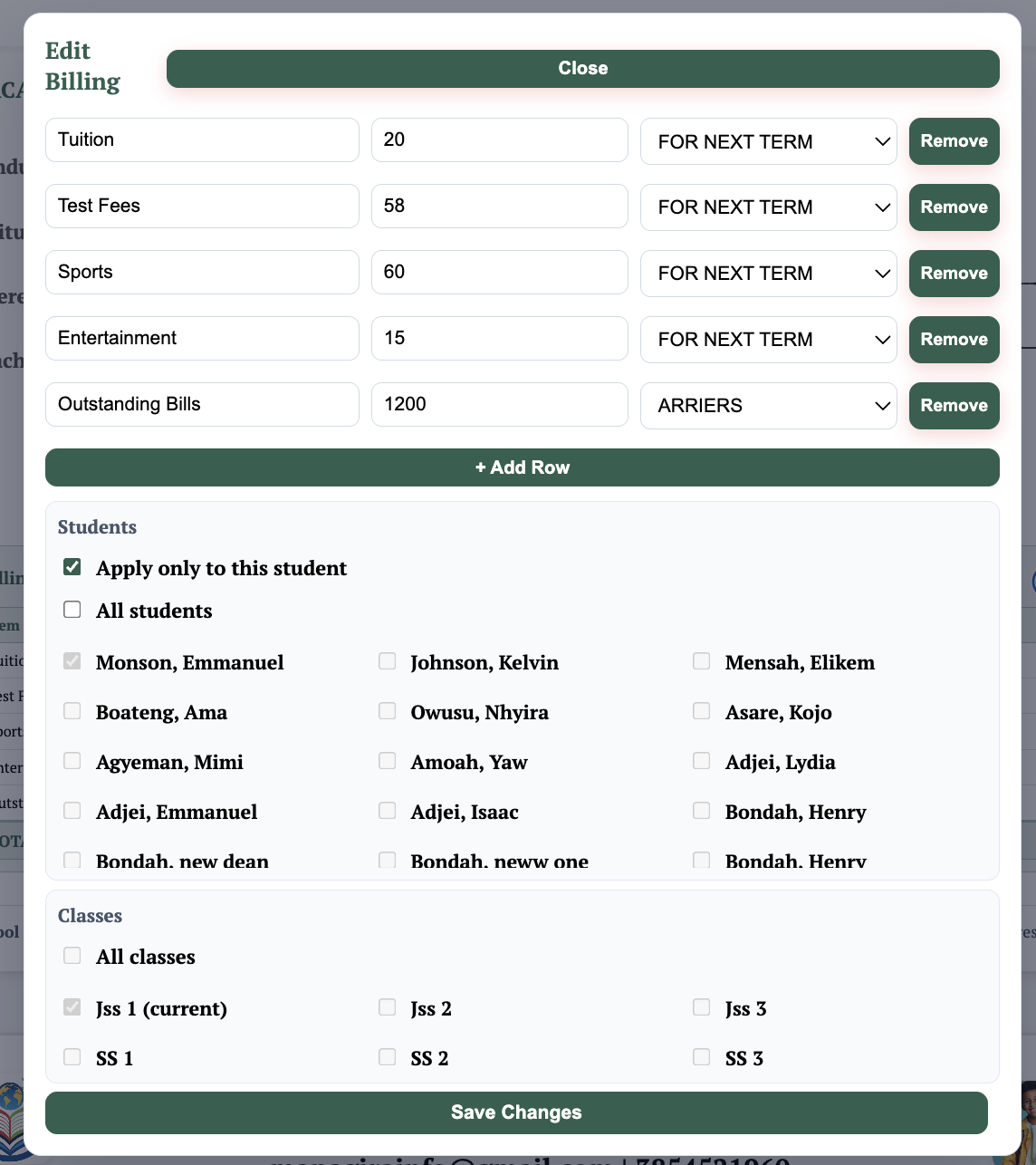
7. Billing report
Provides billing information for the parent or student, such as arrears, upcoming fees, or any outstanding balances. Enable it in Report Settings → Advanced → Show Billing Table.
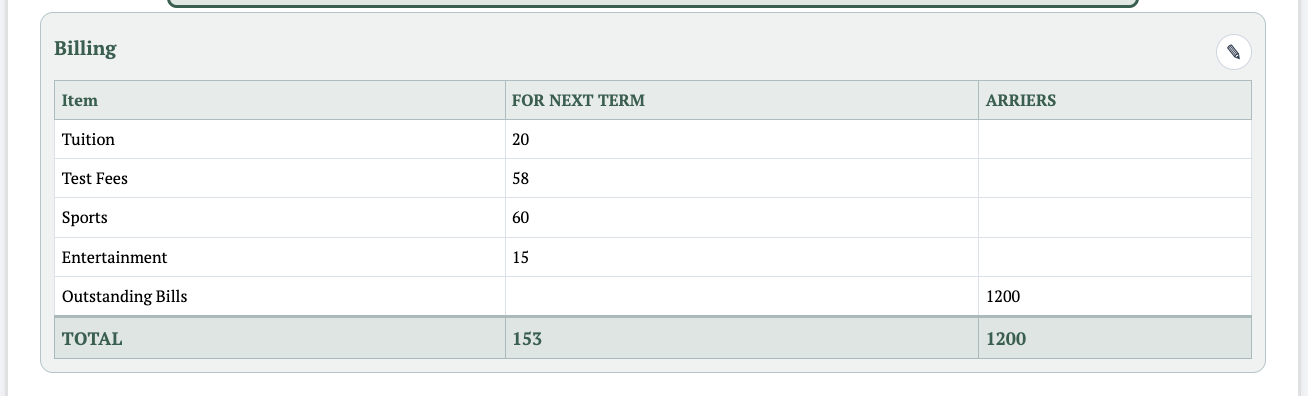
Billing can be entered manually or auto-pulled from Paygira, which fills in each student's billing automatically. After configuration, individual student entries can still be edited manually. Use the pen tool on the report to edit and make chnages as needed for the billing.